NetVizor was
built with ease of use being a primary concern. NetVizor
is separated into two separate entities:
- The
Client
The NetVizor client does the actual "work".
The client is installed on each PC on your network and
from there it records all relevant PC user activities,
performs content filtering duties, and remote administration
handling.
- The
Viewer
The NetVizor viewer is the tool that helps tie all
the NetVizor monitoring clients together so you can
view computer activities, archive logs, perform remote
installations, create network activity reports, and
more. The viewer enumerates all workstations on your
network being monitored by NetVizor - as well as roving
users being tracked. All you have to do is select a
user or workstation and click the "View User Activity" button
to view the user's activities on your network!
NetVizor's
Main Network Configurations:
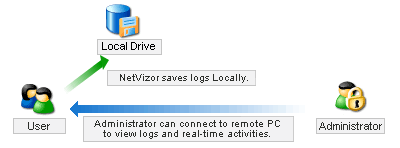
In Localized Storage Mode (the default log storage mode),
logs are stored on each monitored PC. The Viewer can be
used to view these logs from one central PC - removing
any footwork involved in viewing logs across the network.
Localized log storage uses less network bandwidth than
centralized log storage, but does not offer the beneficial
archiving and roving user tracking that centralized log
storage has. [see
screenshot]
back
to top
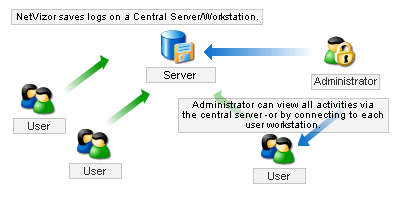
NetVizor can be configured to store logs on a centralized
server or computer on a network. This ability is beneficial
in that logs are all stored on one PC for easy backup and
retrieval. No logs are stored on workstations locally for
users to discover, or stumble upon. While centralized log
storage uses more bandwidth on the network to store logs,
log storage is much more organized and secure. No logs
are saved or copied on the local workstation being monitored.
Centralized Log Storage also allows for the logging of
multiple subnets not directly accessible to the viewing
computer - just add the log storage locations on the subnet
gateway computers to the viewer.
Like
localized log storage no footwork is needed to view logs
- as the viewer will display each workstation logged,
as well as roving users, from one central location. [see
screenshot]
back
to top
| Centralized
Monitoring of Multiple Network Subnets and Segments |
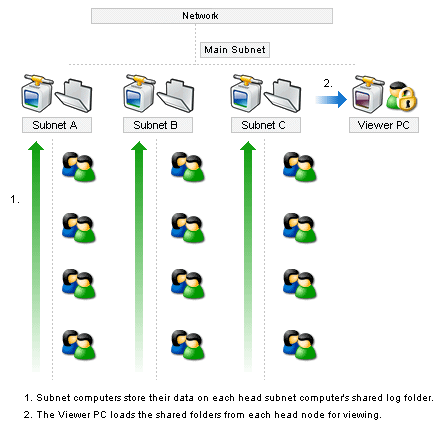
Centralized Log Storage also allows for the logging of
multiple subnets not directly accessible to the viewing
computer simply by adding the log storage locations on
the subnet gateway computers to the viewer. In the example
below, all NetVizor clients store logs on a shared log
storage location at the head of their subnet. The NetVizor
viewer software can then load all of these logs directly
from each shared folder on the head subnet computers it
has access to. [see
screenshot]
back
to top
NetVizor has the powerful ability to categorize individual
users logged on your network, along with workstations logged.
This is useful when users may use multiple workstations
during the day - but use the same logon name to get into
the network. In this case, with centralized log storage
in use, roving users will be monitored and logs will be
stored according to their username - so you can see what
did they did at anytime, regardless of what workstations
they were using. [see
screenshot]
back
to top
| Centralized
Remote Administration |
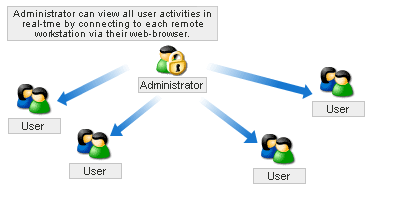
NetVizor does not only focus on centralized monitoring,
but centralized administration as well. NetVizor gives
you the ability to perform remote security audits, remotely
browse file systems on any workstation being monitored
by NetVizor - as well as shutdown, restart, lock, and freeze
workstations. NetVizor's remote administration features
allow all activity logs to be viewed remotely, as well
as specific system information - such as open network ports,
network connections, temporary internet histories, and
more! NetVizor gives the administrator the ability to remotely
control what windows are open on the remote workstation,
what applications are being used, and the option of actually
viewing screenshots of the user's desktop in real-time.
NetVizor can also show you a desktop screenshot of every
workstation on your network in a tiled display with a single
click. [see
screenshot]
back
to top
|